Moving to Yamate › ServiceM8
How to export your data from ServiceM8
What to click in ServiceM8, which files you get, and what can’t come across. Checked 6 October 2026.
Before you start: You need the owner login. Client and job exports need ServiceM8's free Advanced Reporting Pack add-on — step 1 below switches it on.
Clients
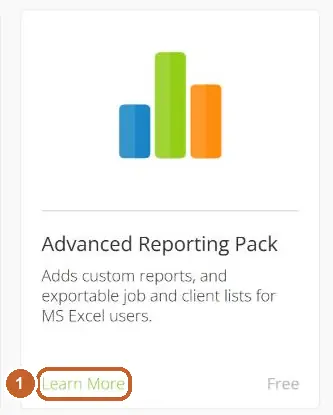
- Go to Account → Features & Integrations, find Advanced Reporting Pack (it is free) and tap Learn More.
- Switch it ON.
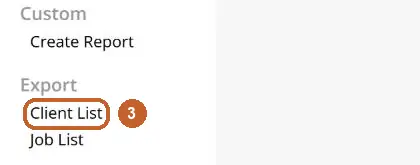
- Open Reports, scroll the left menu to Export and tap Client List.
- Tap Download Mailing List. The icon says XLS, but the file is a CSV — drop it in as it is.


Jobs, quotes and invoices (one file)
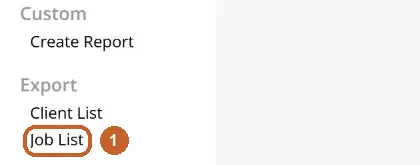
- With the reporting pack on, open Reports and tap Job List under Export.
- Tap Download Job Export Report. It holds your invoices (paid or owed), open quotes and open jobs together — Yamate sorts them.

What can’t come across
- Materials & Services — the web app has no export for them (checked 6 October 2026); add your prices in Yamate
- The full backup zip (ServiceM8 says it cannot be imported anywhere)
- Notes, photos and forms
Then bring it into Yamate
- Open Yamate and go to Settings → Your data → Import data. New accounts are asked once, after the welcome.
- Drop all the files in at once — CSV, Excel or ZIP. They are read on your phone or computer.
- Check the tick-list. Owed invoices stay owed, paid ones count as paid, and nothing you already have is changed.
- Tap Add. Anything you untick is left out.
Checked 6 October 2026 in a real ServiceM8 account and against ServiceM8’s own help pages. Yamate isn’t affiliated with ServiceM8; the name belongs to its owner.
- support.servicem8.com/hc/en-us/articles/202296784 — read 29 September 2026
- support.servicem8.com/hc/en-us/articles/360000963776 — read 29 September 2026
- go.servicem8.com/ — read 6 October 2026