Moving to Yamate › Jobber
How to export your data from Jobber
What to click in Jobber, which files you get, and what can’t come across. Checked 6 October 2026.
Before you start: You need the admin login. Every export is emailed to you, split into files of 1,500 rows — drop them all in.
Clients
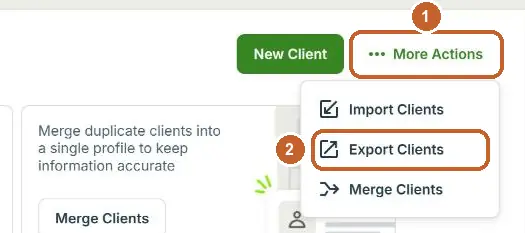
- Open Clients, tap More Actions, then Export Clients.
- Choose CSV. It is emailed to you.
Invoices (with what is paid and owed)
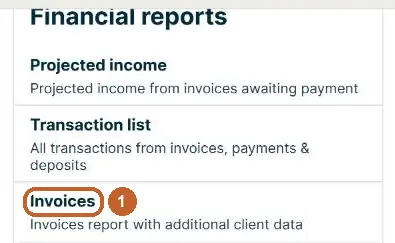
- Open Insights → Reports and tap Invoices under Financial reports.
- Change the dates at the top to cover every invoice — the report starts on the last 30 days.
- Tap Export, then All Columns. It is emailed to you.

Quotes and open jobs
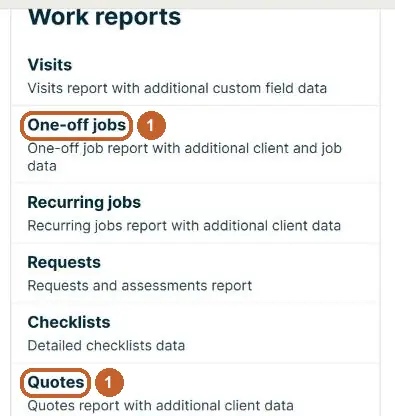
- In Reports, tap Quotes under Work reports — then do the same for One-off jobs.
- On each, widen the dates, tap Export, then All Columns.
Products and services
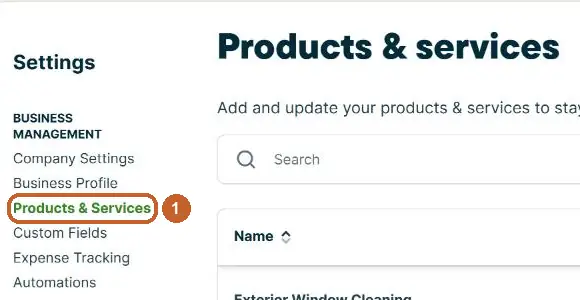
- Tap the gear (Settings) and open Products & Services.
- Scroll to Export products & services and tap Export CSV.

Jobber is an American app — on the next screen, check the dates read the right way round.
What can’t come across
- Photos and attachments
- Recurring job templates
Then bring it into Yamate
- Open Yamate and go to Settings → Your data → Import data. New accounts are asked once, after the welcome.
- Drop all the files in at once — CSV, Excel or ZIP. They are read on your phone or computer.
- Check the tick-list. Owed invoices stay owed, paid ones count as paid, and nothing you already have is changed.
- Tap Add. Anything you untick is left out.
Checked 6 October 2026 in a real Jobber account and against Jobber’s own help pages. Yamate isn’t affiliated with Jobber; the name belongs to its owner.
- help.getjobber.com/hc/en-us/articles/115009619328-Export-Client-Inform — read 6 October 2026
- help.getjobber.com/hc/en-us/articles/17291337236247-Invoices-Report — read 6 October 2026
- secure.getjobber.com/ — read 6 October 2026